DocReview Studio User Manual
DocReview Studio is a 100% client-side, AI-collaborative document proofreading studio that runs completely inside your browser. It allows technical writers, reviewers, and engineering teams to load local HTML manuals or Markdown documents (.md / .markdown), record feedback visually, automatically bundle structured revision prompts for LLMs (Claude, Gemini, ChatGPT), highlight inline diffs in real time, and verify changes side-by-side with a WinMerge-style visual diff inspector.
📑 Table of Contents
1. Core Concepts & Architecture (Human-AI Review Cycle)
2. UI Layout & 3-Pane Structure
3. Quick Start (Get Started in 3 Steps)
4. Core Review Workflow (Text Highlights, Image Reviews & Evidence)
5. AI Prompt Integration (Automated LLM Revision Instructions)
6. Visual Diff Inspection (Inline Highlighting & Side-by-Side Comparison)
7. Generation & Snapshot Management (Version Checkpoints & Safe Exports)
8. Keyboard Shortcuts, Independent Zoom & Multi-Window Tools
1. Core Concepts & Architecture (Human-AI Review Cycle)
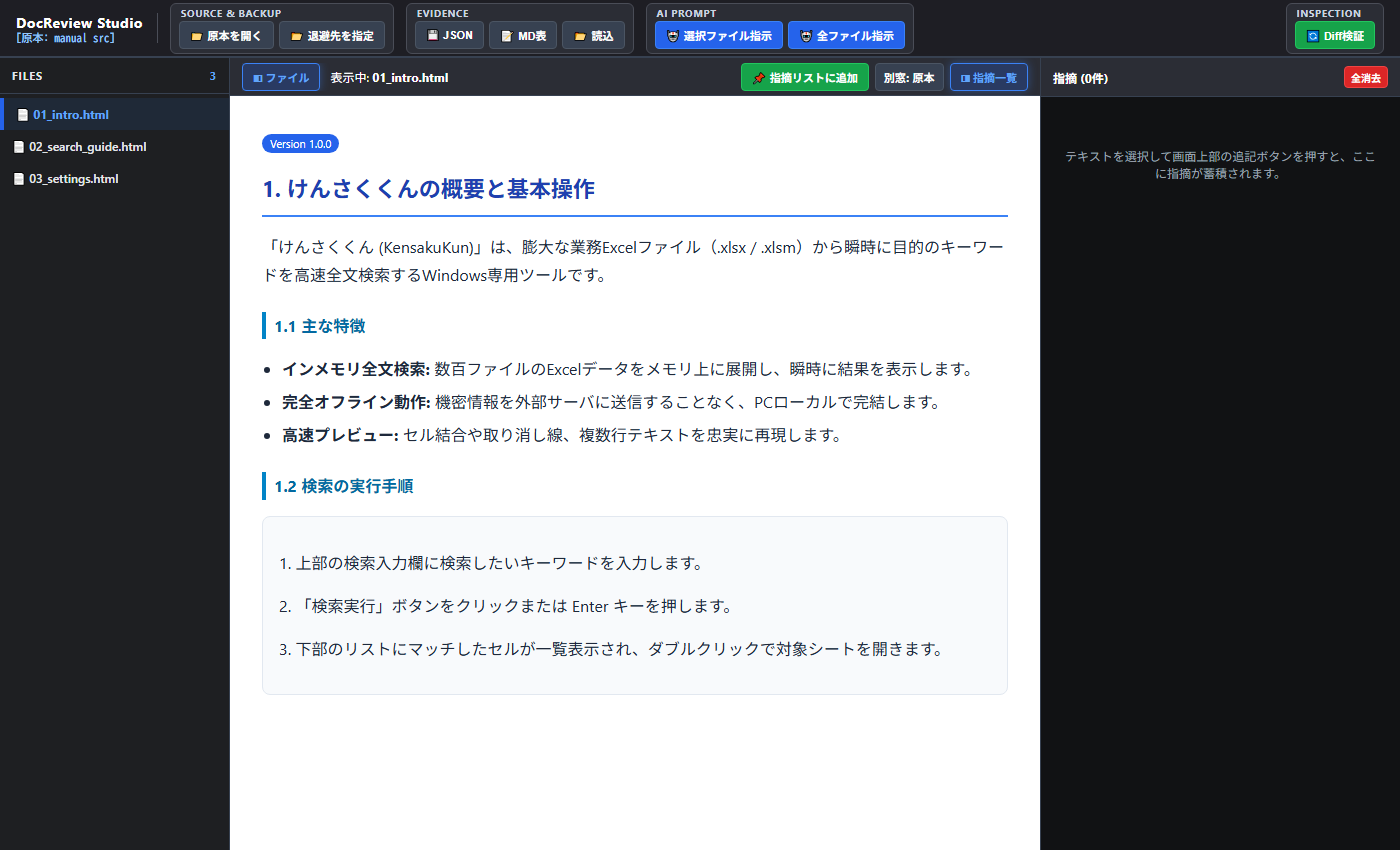
🤖 Human-in-the-Loop AI Collaboration Cycle
- Human: Highlight & Instruct Intuitive Changes: Simply drag and select text directly in the rendered preview and type your feedback. DocReview Studio automatically generates high-precision, actionable prompts (target file, approximate line number, selected text, surrounding context, and your instructions) formatted specifically for LLMs (Claude, Gemini, ChatGPT, etc.) so they never guess or break surrounding markup.
- AI: Modify Code & Safely Verify via Visual Diff: Once the AI modifies your local files, reload with a single click. Inspect the edits immediately via green inline highlights and side-by-side visual diffs to confirm that all feedback was addressed accurately without unexpected layout breaks or unintended edits.
🔒 Zero Server Transmission • 100% Local Privacy
- Powered by the native File System Access API, files and folders are read and manipulated strictly within your browser's local memory.
- Proprietary manuals, confidential specifications, and private company documents never leave your workstation. No cloud upload, no telemetry, no tracking.
📝 High-Speed HTML & Markdown (.md) Rendering
- Seamlessly renders native HTML manuals and Markdown documents (
.md/.markdown) using clean, GitHub-style typography and dark mode styling. - Bundles a self-contained, offline Markdown parser (
marked.min.js) that requires zero external network dependencies.
🚀 No Installer Required • Cross-Platform (Windows & macOS)
- Runs immediately on any modern Chromium-based browser (Google Chrome, Microsoft Edge, Brave, etc.) across both Windows and macOS without installing drivers, runtimes, or backend services.
- Note: Because it relies on the File System Access API, Safari and Firefox are currently unsupported.
2. UI Layout & 3-Pane Structure
DocReview Studio features an ergonomically designed 3-pane workspace tailored for extended, distraction-free proofreading sessions.
| Area | Component | Primary Functions |
|---|---|---|
| Header | Control Bar | Open source folder, workspace history, generation controls (Snapshot Save / Export As), Evidence export (JSON / MD), AI prompt copy, and WinMerge-style diff toggle. |
| Left Pane | File Tree | Hierarchical tree of HTML/Markdown documents with search filter, badge indicators (HTML / MD), and independent zoom widget. |
| Center Pane | Preview & Diff Inspector | Live HTML/Markdown document rendering, inline diff highlighting, side-by-side block diff comparison, and detached window views. |
| Right Pane | Evidence List | Card list of review feedback items with target text, line estimates, category pills, instructions, and independent zoom controls. |
💡 Dynamic Pane Resizing: Drag the divider lines (resizers) between panes to flexibly adjust the widths of the file tree and evidence cards to suit your display setup.
3. Quick Start (Get Started in 3 Steps)

STEP 1: Open Your Source Directory
- Click the "📁 Open Source" button in the top header.
- Choose the local directory containing your HTML or Markdown manuals and grant browser access when prompted.
- The file hierarchy will populate in the left pane (filter anytime using the search box above).
- If you have opened this directory previously, use the "🕒 History" button to restore your prior workspace state instantly.
STEP 2: Select a Document to Review (Automatic v0 Backup)
- Click any file in the left file tree.
- The document renders immediately in the center pane. At the exact moment it is opened, its pristine original state is automatically captured and safeguarded as "v0: Initial Source" in memory.
- This ensures that even if an AI overwrites the active file, you can always compare changes against the original benchmark without manual backups.
STEP 3: Highlight Text & Log Feedback
- Drag and highlight any phrase or sentence in the center preview, then click "📌 Add to Feedback".
- A new card is created in the right pane with auto-detected line numbers and context. Type your instruction (e.g., "Clarify benchmark numbers", "Fix typo").
4. Core Review Workflow (Text Highlights, Image Reviews & Evidence)
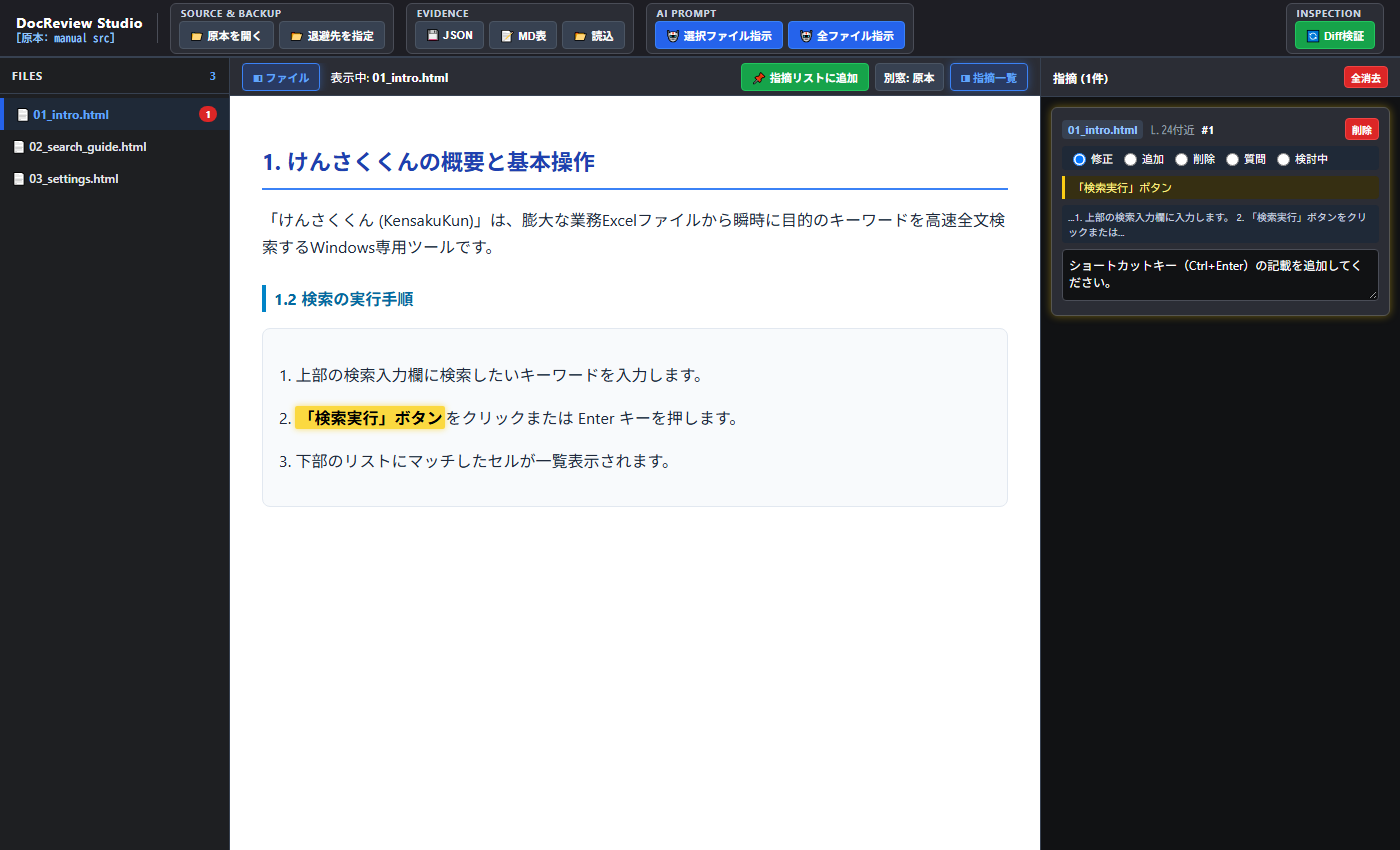
1. Logging Feedback from Text Selection
- Highlight target text in the center preview with your mouse cursor.
- Click either the floating "📌 Add to Feedback" tooltip directly above the selection or the toolbar button "📌 Add to Feedback List".
- A new feedback card is appended to the right pane, and the instruction text area is automatically focused.
2. Reviewing Images & Figures (Right-Click Instant Log)
- Click on an image: A floating "📌 Add to Feedback" button appears above the upper-right corner of the image.
- Right-click on an image: Instantly captures the image file name, figure caption, and parent section heading, creating a pre-filled feedback card in one click.
3. Document-Wide General Feedback
To provide broad guidance for an entire document (e.g., "Unify tone across all sections", "Add SEO keywords to headings"):
- Click the "Viewing: 📄 [filename]" label in the center toolbar.
- Alternatively, click "📌 Add to Feedback List" without selecting any text.
4. Editing Feedback Cards
Each feedback card automatically tracks and displays:
- Target File & Line Estimate: Automatically calculated from position in original source (e.g.,
~L.24). - Category Pill (Radio): Categorize as
Fix/Add/Delete/Question/Pending. - Selected Text (Yellow Highlight): Clicking this automatically scrolls the center preview to the exact passage with an animated pulse highlight.
- Context Window: Preserves preceding and following sentences for ambiguity-free AI targeting.
- Instruction Field: Detail the precise changes you want the author or LLM to execute.
5. Exporting & Restoring Evidence
Use the Evidence action group in the header to preserve and share review results:
- 💾 JSON: Exports an exact, structured JSON file of all logged cards for storage or automated parsing.
- 📝 MD Table: Exports a clean Markdown table ready to paste directly into GitHub Issues, PR descriptions, or review reports.
- 📂 Load: Imports previously exported JSON files, fully restoring your review workspace and feedback cards.
5. AI Prompt Integration (Automated LLM Revision Instructions)
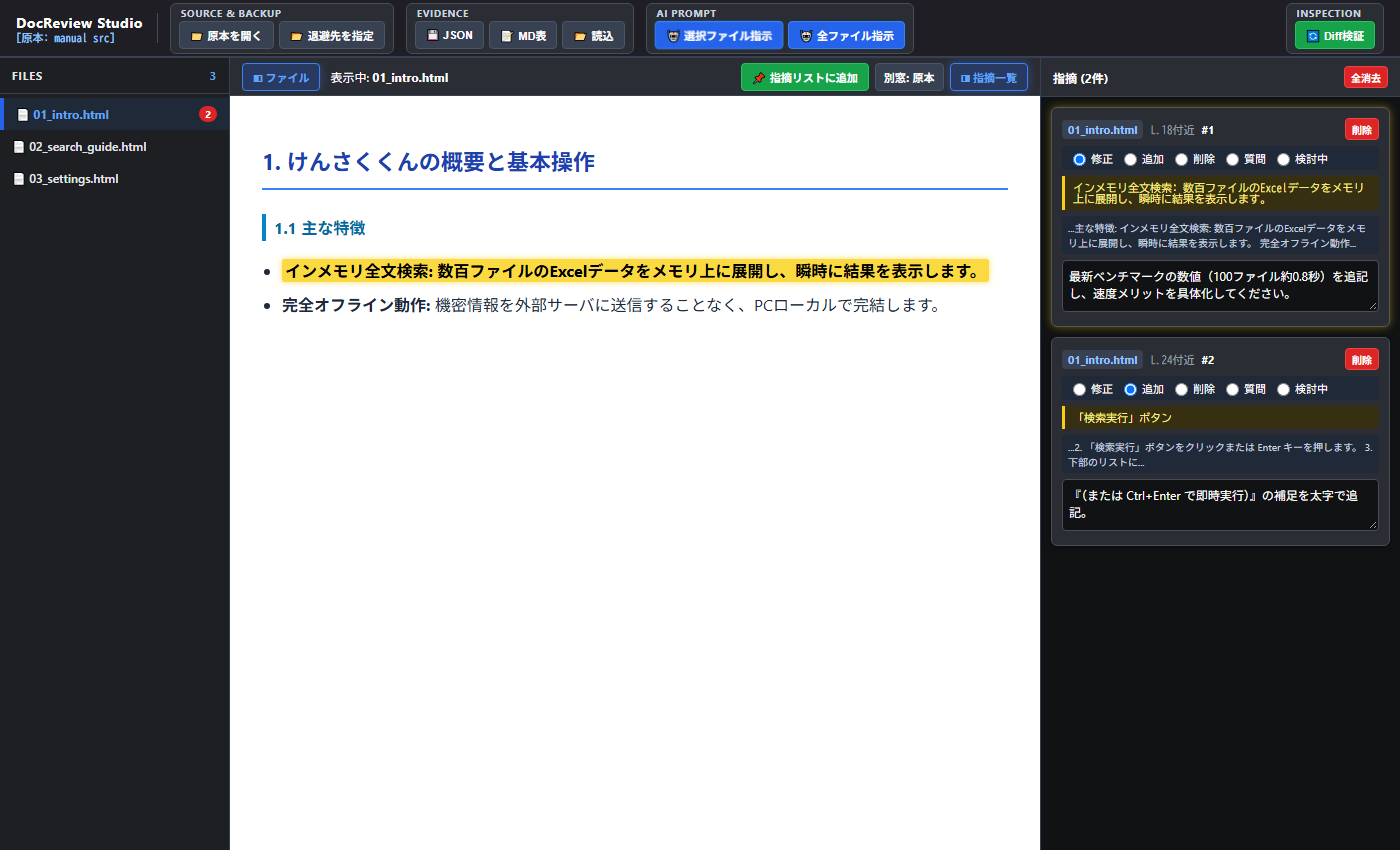
Transform your logged feedback into production-grade prompts formatted specifically for LLMs (Claude 3.5/3.7, Gemini 2.0/3.0, ChatGPT o3/GPT-4o) to execute direct in-place modifications accurately.
Copying Instructions to Clipboard
- 🤖 Selected File Prompt: Formats only the review items belonging to the currently active document.
- 🤖 All Files Prompt: Consolidates and structures all feedback items across your entire project into a single prompt.
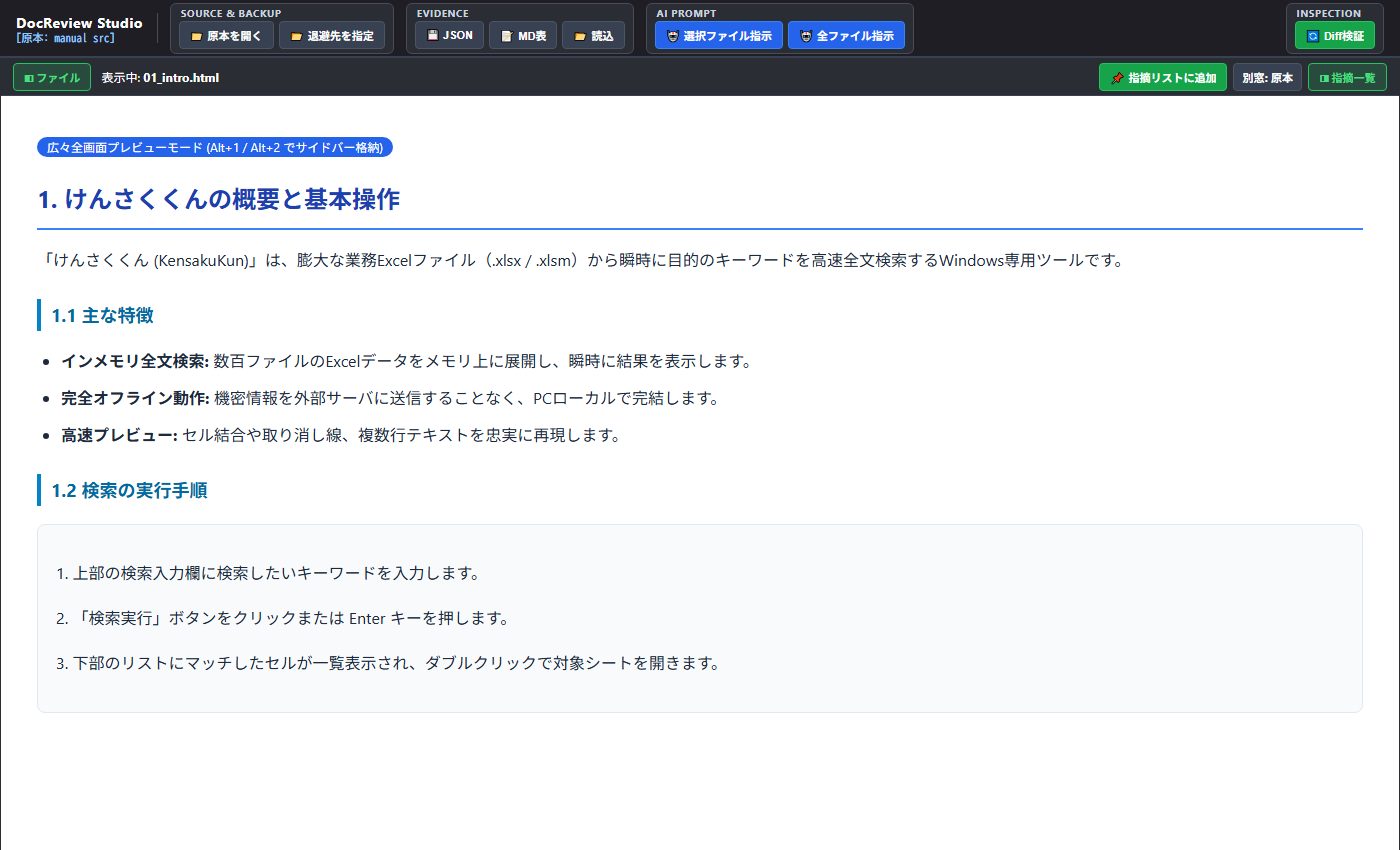
Example of Generated LLM Prompt
【Target File: 01_intro.html】
Please directly edit the specified file to apply the revisions listed below.

【Strict Execution Rules】
1. Single File Scope: Do not execute web searches or search/grep other files in the project.
2. Ignore External Links: Do not validate or alter external URL links (hrefs). Strictly perform simple text replacement on the target strings.
3. Preserve Markup & Identifiers: Keep existing HTML tags, attributes, class names, code blocks, and English code identifiers intact. Do not alter surrounding text unless instructed.

========================================
[Feedback #1] 【Fix】
Target File: 01_intro.html (~L.18)
Target Text:
"In-Memory Full-Text Search: Loads hundreds of Excel sheets into memory and returns results instantly."
Context:
"...Key Features: In-Memory Full-Text Search: Loads hundreds of Excel sheets into memory and returns results instantly. 100% Offline Operation..."
Instruction:
Add the latest benchmark metrics (~0.8s for 100 files) to demonstrate explicit performance advantages.
6. Visual Diff Inspection (Inline Highlighting & Side-by-Side Comparison)
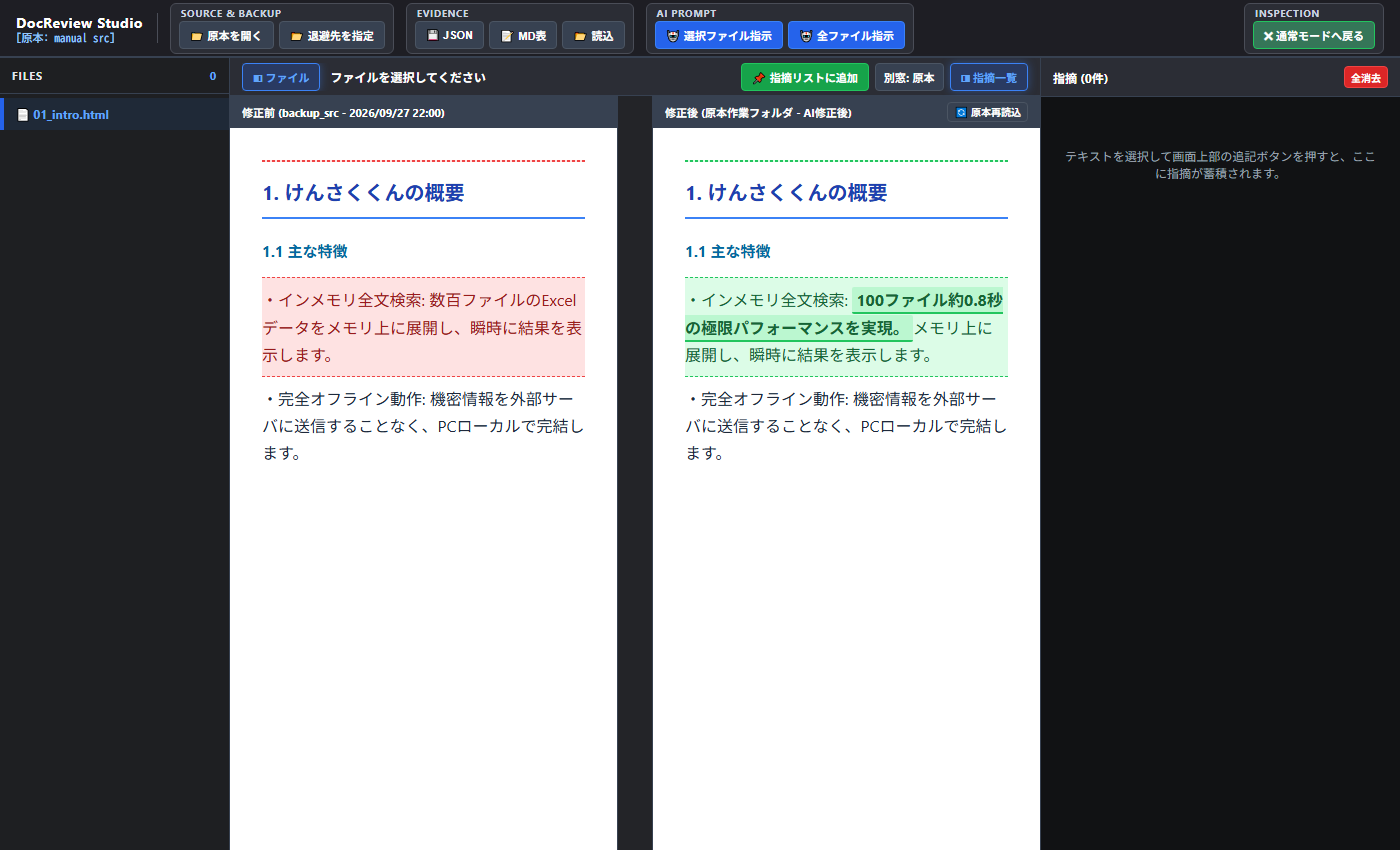
After your AI assistant or team members complete the revisions, inspect and verify changes visually using two dedicated diff modes.
1. Real-Time Inline Diff Highlighting (Recommended)
- Click the "⏭️ Modified (Diff)" button in the center toolbar. Without leaving your reading flow, all updated or newly added sentences are highlighted directly in green inside the document preview.
- Click again to toggle to "⏮️ Original", allowing instantaneous A/B comparison between revisions.
2. WinMerge-Style Side-by-Side Block Comparison
- Click "🔄 WinMerge Diff" in the top header to split the center area into a synchronized 2-pane comparison view:
- Left Pane: Original baseline (Safeguarded v0 original or backup folder).
- Right Pane: Modified document (Live working directory with latest edits).
- Center Canvas Bridge Lines: Connects corresponding diff blocks with smooth bezier curves so you immediately spot where content was inserted or rewritten.
- Synchronized Scrolling: Scrolling either side smoothly updates the opposite pane to keep matching sections in view.
3. High-Precision HTML Tokenizer Engine
- Powered by Google
diff-match-patchcombined with custom HTML token lexical analysis. - Unlike naive text diffs that break upon encounter of tags, our engine tokenizes HTML markup and raw text separately, preventing broken DOM trees and eliminating false-positive color noise on unrelated headings.
4. 🔄 Instant Reload Buttons
- 🔄 Reload File (Center Toolbar): High-speed single-file refresh from disk (updates immediately without rescanning large directories).
- 🔄 Reload Workspace (Header): Full rescanning of all project folders to detect newly added or renamed files.
7. Generation & Snapshot Management (Version Checkpoints & Safe Exports)
Manage progressive document milestones directly in the browser without having to switch over to Git or command line tools.
Lifecycle of Generations
- v0: Initial Original: The untouched baseline recorded automatically upon first opening. It remains safeguarded as the ultimate comparison benchmark.
- 📸 Save Snapshot: After an AI applies a batch of fixes and you verify the outcome, click "📸 Save" to commit this milestone as "v1", "v2", etc.
- Active Working File: The live disk file currently receiving edits.
- Generation Selector: Select any prior generation from the dropdown menu to dynamically change which baseline version is compared against your working files.
- 📥 Export As: Export any historic snapshot safely under a distinct filename (e.g.,
index_v0_snapshot.html) without overwriting your original.
8. Keyboard Shortcuts, Independent Zoom & Multi-Window Tools
⌨️ Keyboard Shortcuts (Windows & macOS Compatible)
| Action | Windows | macOS (Mac) |
|---|---|---|
| Toggle Left Pane (File Tree) | Alt + 1 |
Option + 1 (⌥1) |
| Toggle Right Pane (Evidence List) | Alt + 2 |
Option + 2 (⌥2) |
| Independent Pane Zoom Under Cursor | Ctrl + Scroll Wheelor Alt + Scroll Wheel |
Cmd + Scroll (⌘)or Option + Scroll (⌥) |
| Reset Pane Zoom to 100% | Ctrl + 0or Middle-Click / Alt + 0 |
Cmd + 0 (⌘0)or Middle-Click / Option + 0 |
🔍 Independent 3-Zone Zoom System
Each pane (File Tree, Document Preview, and Evidence Cards) features its own dedicated zoom widget (− 100% +) in its header.
- Enlarge tiny document text without blowing up your file tree, or shrink cards on high-density displays for an expanded overview.
- The top header and toolbars stay locked at 100% scale and fully respect your native browser zoom settings without distortion.
🖥️ Multi-Display Detached Window Mode
- "🪟 Working": Opens the current modified HTML preview in a dedicated, distraction-free external browser window.
- "🪟 Original": Opens the pristine original document in an independent window.
- Ideal for dual-monitor workflows: place the original document full-screen on monitor 1 and the live modified version on monitor 2.